Documentation
Welcome to Sundy — a robust, ultra-secure privacy system for people who need more than ordinary encryption. Sundy combines AES-256 protection, unlimited independent passwords, self-healing storage, and plausible-deniability carriers that leave no trace of what — or how much — you keep.
Installation
macOS Installation
- Download the latest
Sundy-<version>.pkginstaller from the official website - Run the installer and follow the prompts (Sundy is installed to
/Applications) - Launch Sundy once from Applications
- Enable the bundled file-system extension: System Settings → General → Login Items & Extensions → File System Extensions → Sundy Extension
💡 Fully native on macOS 26+
Sundy mounts encrypted volumes through Apple FSKit, built into macOS 26 and later on Apple Silicon. There is no macFUSE, no third-party kernel extension, and no additional software to download or install — the FSKit module ships inside the Sundy app.
License Activation
After purchase, you'll receive a license key. To activate:
- Open Sundy and go to the "About" tab
- Copy your Machine ID and use it during purchase
- Paste the received license key in the activation field
- Click "Activate" to enable full functionality
System Requirements
- macOS: 26.0 or later on Apple Silicon (arm64)
- Additional software: None — Sundy includes its own FSKit extension; macFUSE, third-party kernel extensions, and reduced macOS security settings are not required
- Storage: Space for your encrypted storage file, directory, or audio carrier
- RAM: 4 GB minimum (8 GB recommended)
Quick Start
Creating Your First Encrypted Storage
- Launch Sundy
- Click Create New Storage File
- Under Storage System, choose Single Block File (Default), Local Filesystem (Directory), or WAV / AIFF audio (steganography) (see Storage Backends)
- Set New Volume Path, then set Disk Size (MB) for block-file and directory storage
- For WAV/AIFF carriers, choose WAV noise depth K (remember it — needed to unlock) and write down the K value with your password
- Click Create
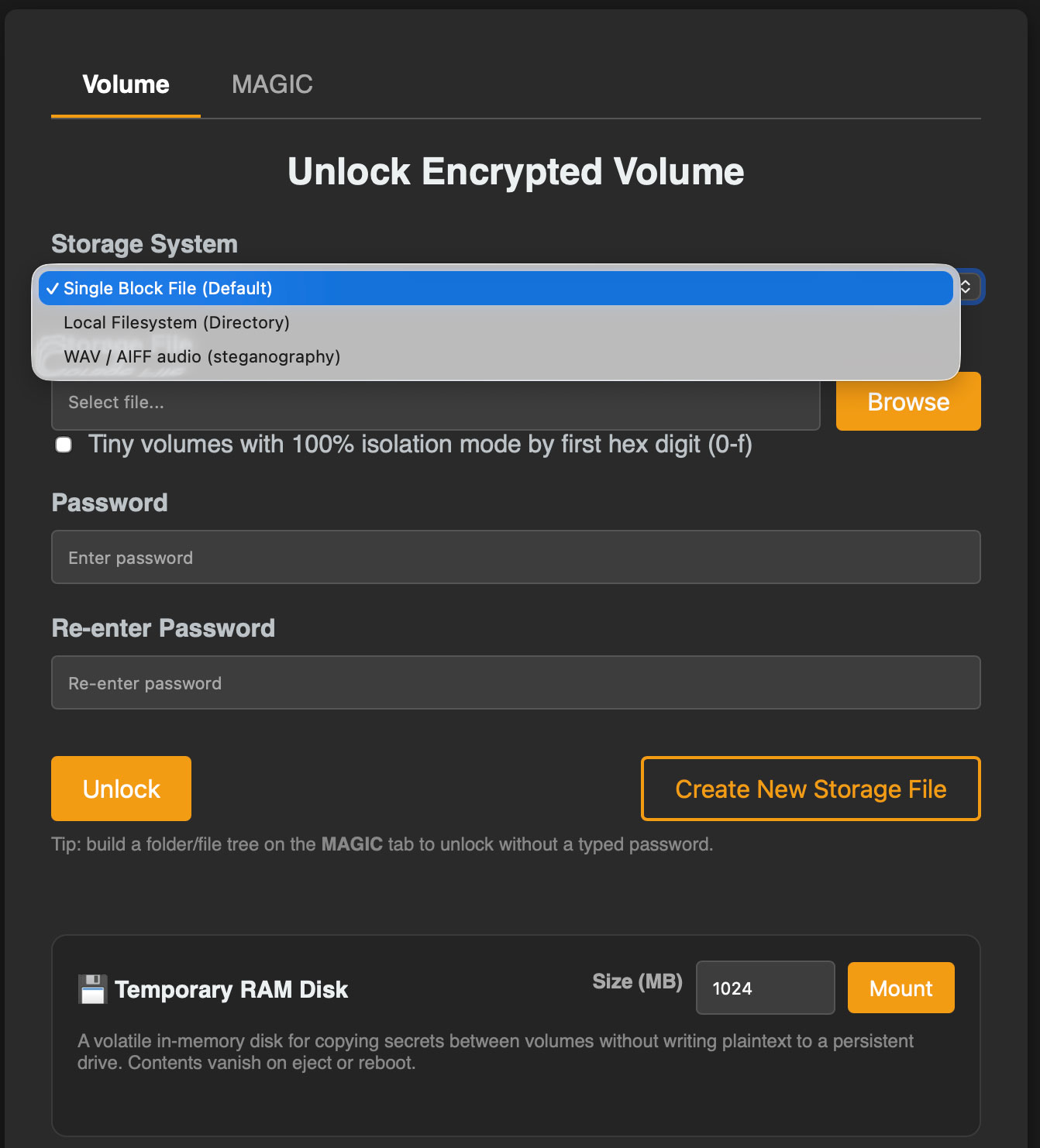
💡 Every volume is fully randomized
On creation, Sundy fills the entire file with cryptographically random data. There is no opt-out — this is what makes used and unused space indistinguishable and is the foundation of plausible deniability. Randomizing a large file is a one-time cost paid at creation.
Unlocking & Mounting Your Storage
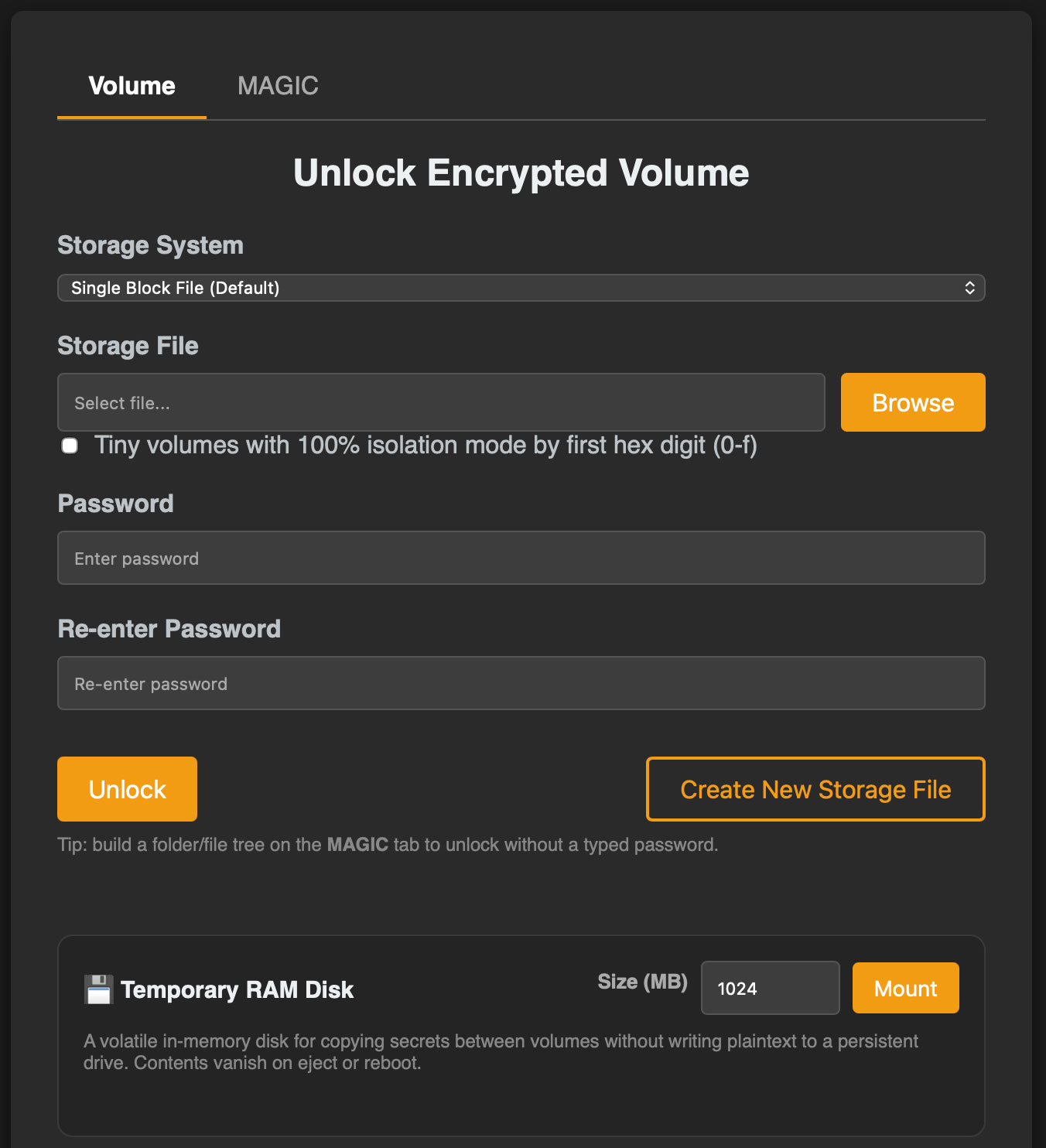
- Open Sundy and choose the matching Storage System
- Select or drag in your Storage File (or carrier/config, depending on the storage system)
- For block files, choose whether to enable Tiny volumes with 100% isolation mode by first hex digit (0-f) based on the volume layout you want to open
- For WAV/AIFF carriers, set WAV noise depth (must match how the carrier was created) to the same K value used during creation
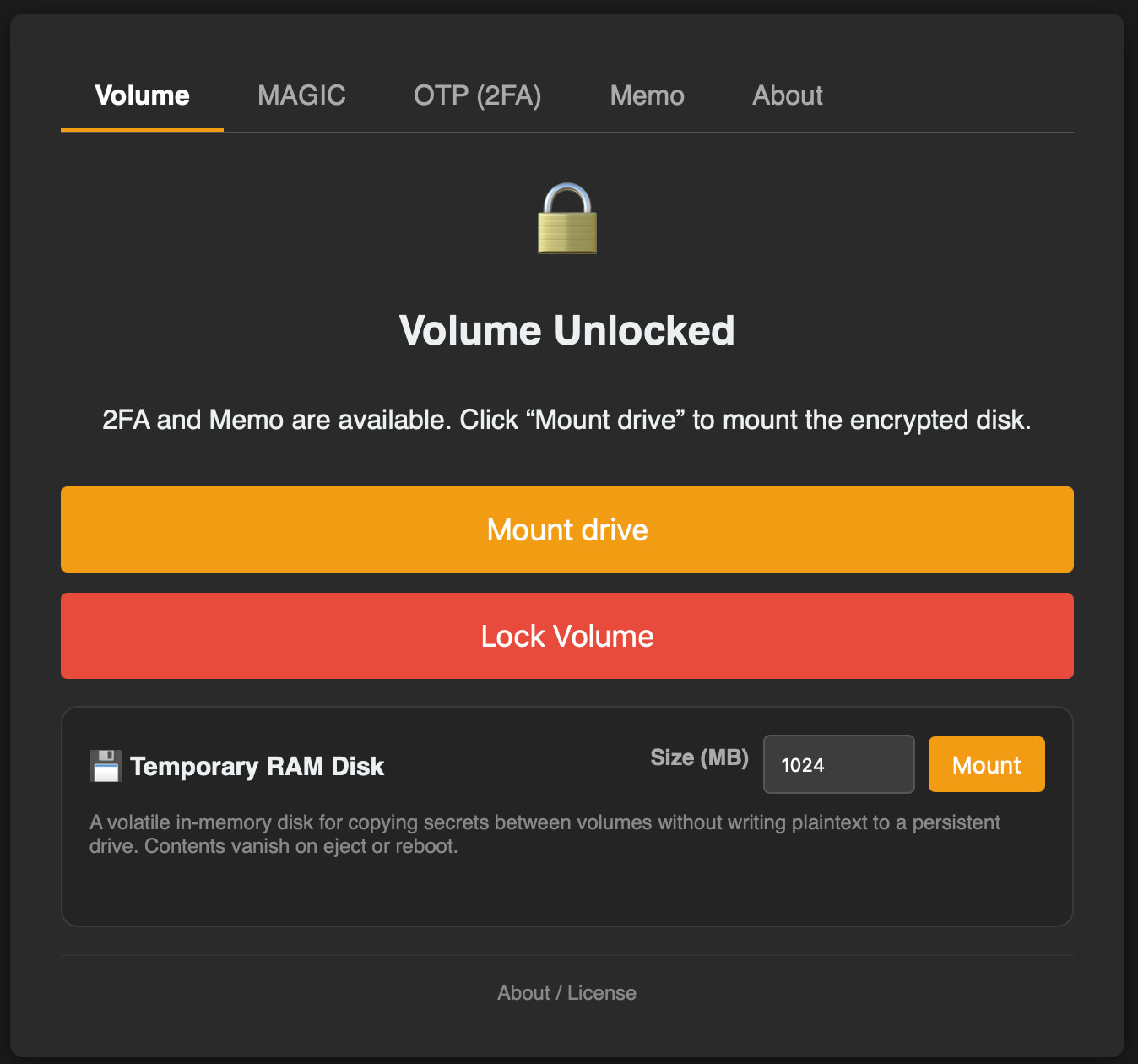
- Enter any password and click Unlock — this opens the vault and makes the 2FA and password/notes managers immediately available
- Click Mount drive only when you need the encrypted disk in Finder
- A new disk appears in Finder, ready to use like any other drive
⚠️ Important
Each unique password creates a separate, isolated vault. There is no "master password" and no "wrong password" — every password simply opens its own space. If you forget a password, that vault's data is permanently inaccessible.
Unlock vs. Mount
Opening a vault and mounting a disk are two separate steps:
- Unlock opens the vault and derives the key. The 2FA vault and the password/notes manager become immediately usable. Nothing is mounted, and no disk image is attached.
- Mount drive exposes the encrypted disk in Finder. Do this only when you actually need to browse files.
This keeps the disk image unmounted (and your footprint smaller) when you only need quick access to a TOTP code or a stored password.
Multi-Password System
Sundy's revolutionary multi-password system allows unlimited passwords per storage file. Each password opens a completely separate vault with its own files.
How It Works
When you enter a password, Sundy derives an encryption key using PBKDF2-HMAC-SHA256 with 5,000,000 iterations (≈2–3 seconds on a modern Mac), salted with random entropy stored in the volume. That key both decrypts your data and mathematically determines which clusters in the storage file belong to your vault — there is no allocation table to read. Different passwords = different keys = different cluster locations = different data.
Plausible Deniability
There is no way to determine how many passwords (vaults) exist within a storage file. The entire file appears as random data, with no headers or markers. Even if forced to reveal a password, you can provide one that opens an innocent decoy vault — an adversary can only ever see what the password you give them unlocks, and cannot prove that anything else exists.
💡 Why 5 million iterations?
A high iteration count makes each password guess deliberately expensive, defeating GPU-accelerated brute-force and dictionary attacks while keeping the unlock time to a few seconds for the legitimate user.
Password → Bucket Map (Gen3)
In the Gen3 block-file layout (and in WAV/AIFF steganography), each password is assigned one of 16 buckets numbered 0 through 15. The bucket is derived from the password's first character only — not from the full string. Passwords that land in the same bucket share the same storage region; different buckets are disjoint, so one vault cannot corrupt another.
Sundy applies these rules in order:
- Empty password → bucket 0.
- All-hex password — if every character is a hex digit (
0-9,a-f,A-F) — the bucket is the numeric value of the first hex digit (0–15). This is how MAGIC Unlock hashes spread uniformly across all 16 buckets. - Otherwise — look up the first character in the dictionary below. If it is not listed, use the character's low 4 bits (
byte & 0x0F).
Latin alphabet (a–z, A–Z)
Upper- and lower-case letters map to the same bucket. Letters q–z wrap and reuse buckets 0–9 (note the non-alphabetic order for x, y, z).
| Bucket | Letters | Bucket | Letters |
|---|---|---|---|
| 0 | a A q Q | 8 | i I x X |
| 1 | b B r R | 9 | j J z Z |
| 2 | c C s S | 10 | k K |
| 3 | d D t T | 11 | l L |
| 4 | e E u U | 12 | m M |
| 5 | f F v V | 13 | n N |
| 6 | g G w W | 14 | o O |
| 7 | h H y Y | 15 | p P |
Symbols with fixed mappings
| Character | Bucket | Character | Bucket |
|---|---|---|---|
! | 10 | @ | 11 |
# | 12 | $ | 13 |
. | 14 | & | 15 |
All-hex passwords (first digit → bucket)
When the entire password string is hexadecimal, the first character alone selects the bucket by its numeric value:
| First character | Bucket | First character | Bucket |
|---|---|---|---|
0–9 | same digit (0–9) | a A | 10 |
b B | 11 | c C | 12 |
d D | 13 | e E | 14 |
f F | 15 | Example: deadbeef → bucket 13 (first char d) | |
Fallback (any other first character)
Characters not in the tables above — digits in a mixed password, spaces, punctuation, Unicode, etc. — use the ASCII byte's low four bits (char & 0x0F). Examples:
0digit→'0'(ASCII 48) → low nibble → bucket 05xyz→'5'(ASCII 53) → low nibble → bucket 5%secret→'%'(ASCII 37) → low nibble → bucket 5
💡 Choosing passwords for separate vaults
Two passwords that map to the same bucket still derive different encryption keys (the full password is used for key derivation), but in Gen3 they compete for the same cluster region — on block files one vault can overwrite the other's clusters; on WAV carriers they share the same interleaved byte lane. For maximum isolation, pick passwords whose first characters land in different buckets.
Storage Backends
Sundy can hide your encrypted vaults in three different kinds of carrier. All three support the multi-password model.
Block File (Recommended)
All encrypted data lives in a single pre-allocated file that looks like pure random noise. Each logical block is written to 16 redundant copies (Gen3 layout) or 32 copies (Flat-32 compatibility layout), so the volume survives corruption and bit-rot. Benefits:
- Easy to back up and move — it's just one file
- Indistinguishable from random data
- Built-in redundancy and on-read self-healing
- Gen3 buckets give different passwords disjoint storage regions, so vaults can never corrupt one another (see Password → Bucket Map)
Directory Storage
Encrypted blocks are stored as individual files inside a directory tree (filenames are themselves hashed). Benefits:
- Better for cloud sync — only changed blocks need to re-upload
- Works naturally with file-level backup systems
- Optional gzip compression before encryption
Audio Carrier (WAV / AIFF Steganography)
An audio carrier is a normal lossless song file that also holds encrypted Sundy storage. Sundy uses the least-significant bits of each PCM audio sample — the tiny natural-looking noise area at the bottom of the waveform — and fills that space with encrypted vault data. To a listener or analyzer the file still looks and sounds like ordinary audio noise, with no Sundy header, marker, or visible storage map.
The audio still plays normally, but the low-bit noise floor becomes a hidden key-value store for your 2FA vault, Memo records, passwords, notes, and optional mountable disk.
Creating an Audio Carrier
- In Create New Storage File, choose WAV / AIFF audio (steganography)
- Select an existing PCM WAV/AIFF file, or a compressed source (MP3, FLAC, MP4/M4A, AAC) which Sundy converts to a lossless WAV first
- Pick a noise depth K — higher K means more capacity but slightly more audible hiss
- Create — the selected low-bit noise floor becomes super-hidden encrypted storage, ready to hold your vault
⚠️ Handle audio carriers as lossless and write-once
The noise depth K is never stored in the file — you must remember it along with your password (a wrong K looks like an empty vault). Any lossy re-encode, resample, normalization, or editor "save" that rewrites the PCM destroys all hidden data. Keep originals backed up.
Encryption & Integrity
Sundy uses well-established, openly documented cryptographic algorithms:
- AES-256-CTR for all data encryption
- PBKDF2-HMAC-SHA256 with 5,000,000 iterations for password-to-key derivation
- SHA-512 / SHA-256 for deriving each block's storage location
- HMAC-SHA256 ("authenticated clusters") to detect tampering and bit-rot on every read
A Fresh IV for Every Copy
Each redundant copy of a block is encrypted independently with its own random initialization vector. That means identical data never produces identical ciphertext on disk — an observer cannot tell which clusters are in use, preserving deniability.
Authenticated Clusters
Every cluster carries a keyed HMAC-SHA256 tag derived from your master key. On read, the tag is verified, so silent corruption or deliberate tampering is detected and the next good copy is used instead. The integrity key is independent of the AES key and is never written to disk.
No Signatures
Unlike other encryption tools, Sundy files contain zero identifying markers. No headers, no magic bytes, no metadata. To forensic analysis, your storage file is indistinguishable from random noise.
Memory Hygiene
Derived keys are held as raw byte buffers (not Go strings) and wiped when you lock a volume. Decrypted data cached in memory is zeroed on lock, so plaintext does not linger after the vault is closed.
MAGIC Unlock
MAGIC Unlock lets you unlock a vault with a structure of folders and files instead of a typed password.
How It Works
- Open the MAGIC tab on the unlock screen
- Build a secret tree in the Finder-style view — create folders and drag in files from Finder
- Click Unlock with MAGIC
- Sundy hashes the exact tree — folder names, nesting, file names, and file contents — into a 256-bit key and uses it as your password
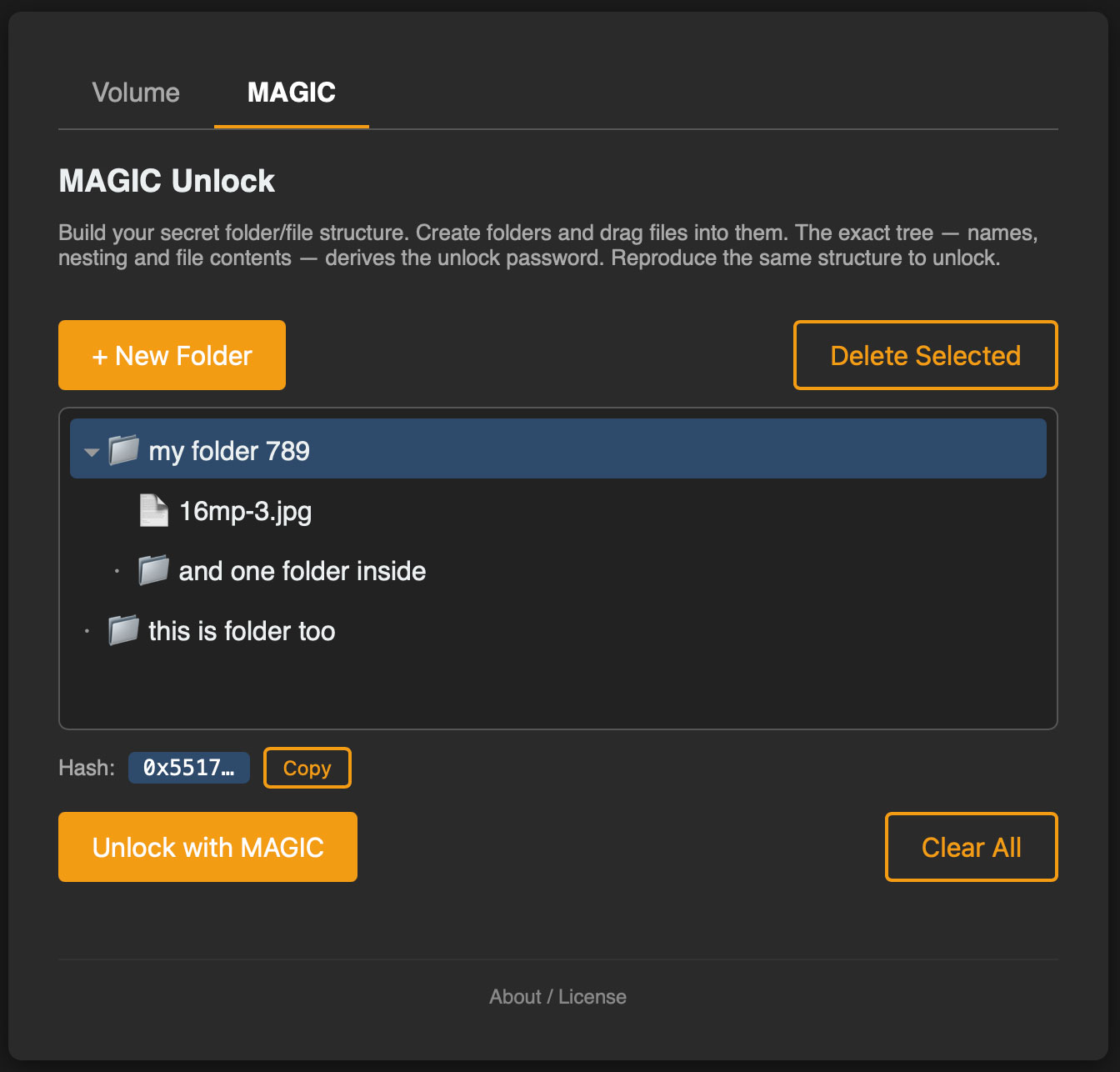
To unlock again you simply rebuild the same tree. The order of items doesn't matter (entries are name-sorted) and hidden files (names starting with .) are ignored, but even a one-byte change to any file produces a completely different key.
💡 Pro Tip
Use files you can reliably reproduce — for example a specific photo you keep backed up on several devices. Anyone without the exact files (and structure) cannot derive the key.
2FA Vault
Store your TOTP (Time-based One-Time Password) secrets securely within your encrypted vault.
Security Model
Unlike phone authenticator apps that keep secrets in memory, Sundy's 2FA vault:
- Decrypts the secret only when generating a code
- Generates the TOTP code
- Immediately destroys the secret from memory
This is the most secure way to use 2FA on a computer — secrets never persist in memory.
Adding 2FA Accounts
- Unlock your vault
- Go to the "OTP" tab
- Enter the account name and secret key
- Click "Add" to save
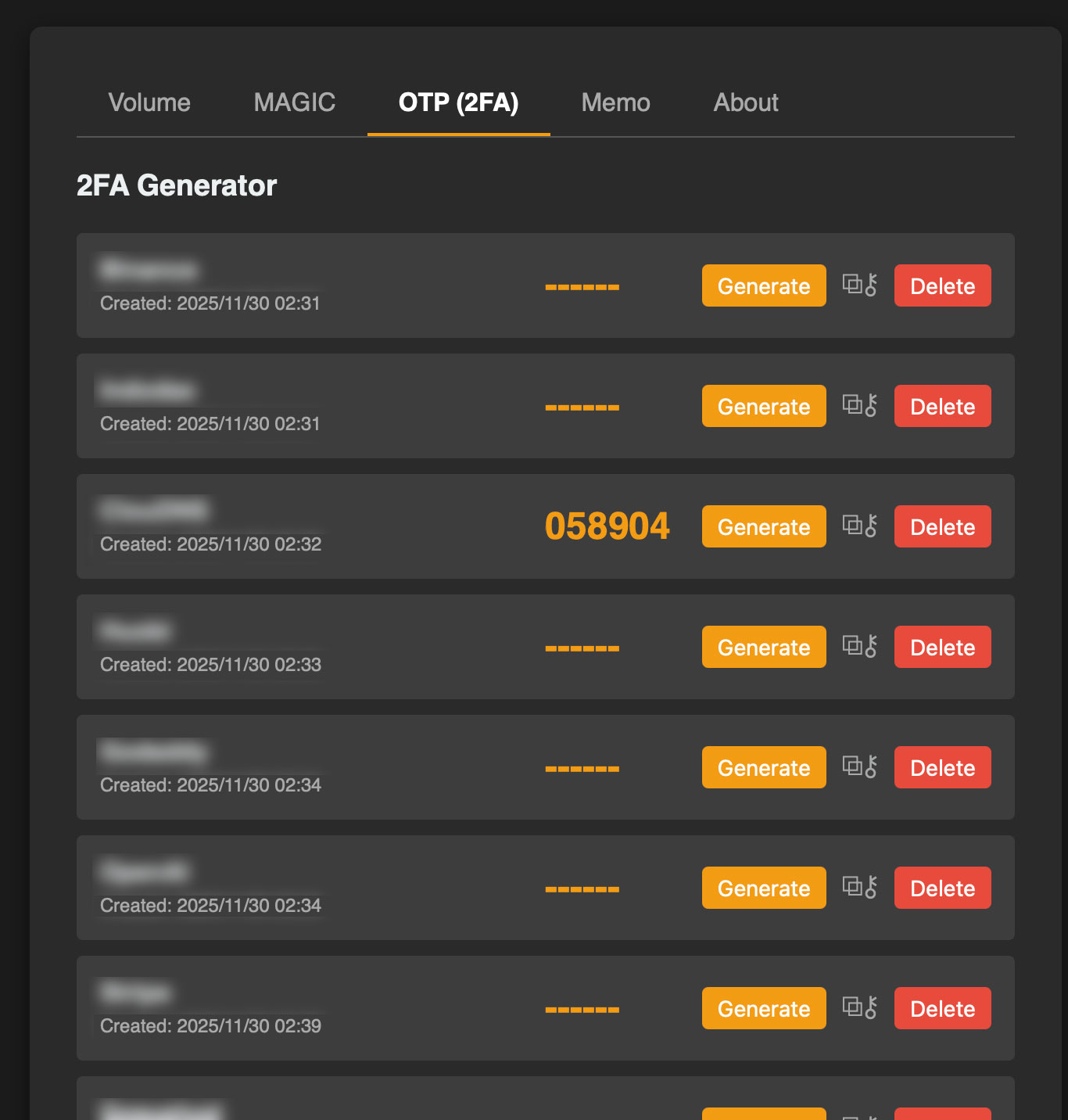
Codes are generated with the standard RFC 4226 / RFC 6238 TOTP algorithm, compatible with Google Authenticator, Authy, and similar apps. Secrets can be entered in base32 (the most common), base64, hex, or plain utf8 encoding.
Passwords & Notes
Beyond 2FA, each vault includes a built-in manager for passwords and secure notes (the "Memo" feature). Records are organized into folders, and every secret is encrypted with the same vault key.
- Store login passwords, secure notes, and per-record TOTP secrets together
- Every secret is written with an automatic backup copy and recovered transparently if the primary is ever lost
- Secrets are read with caching bypassed and the in-memory buffer zeroed after use
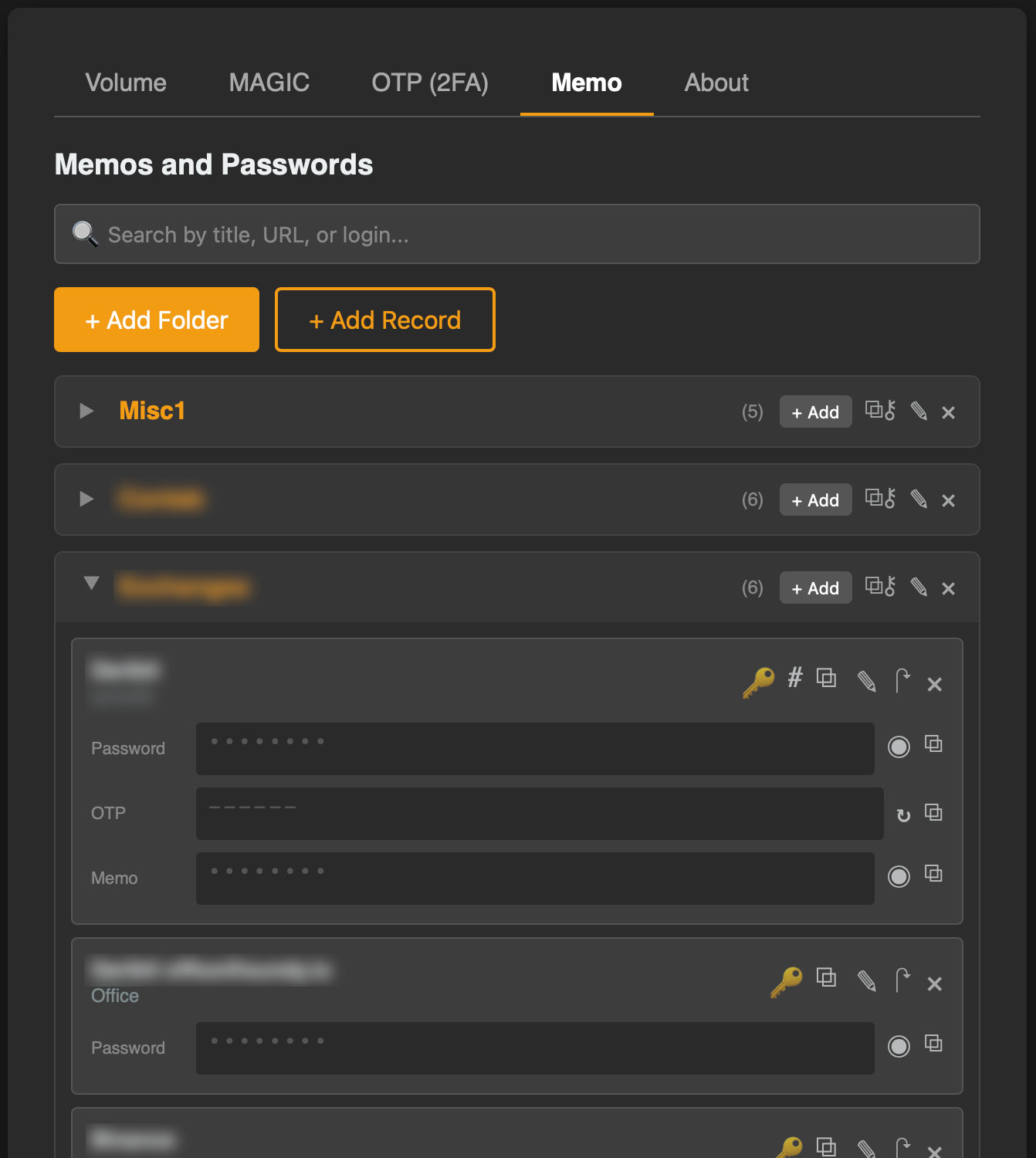
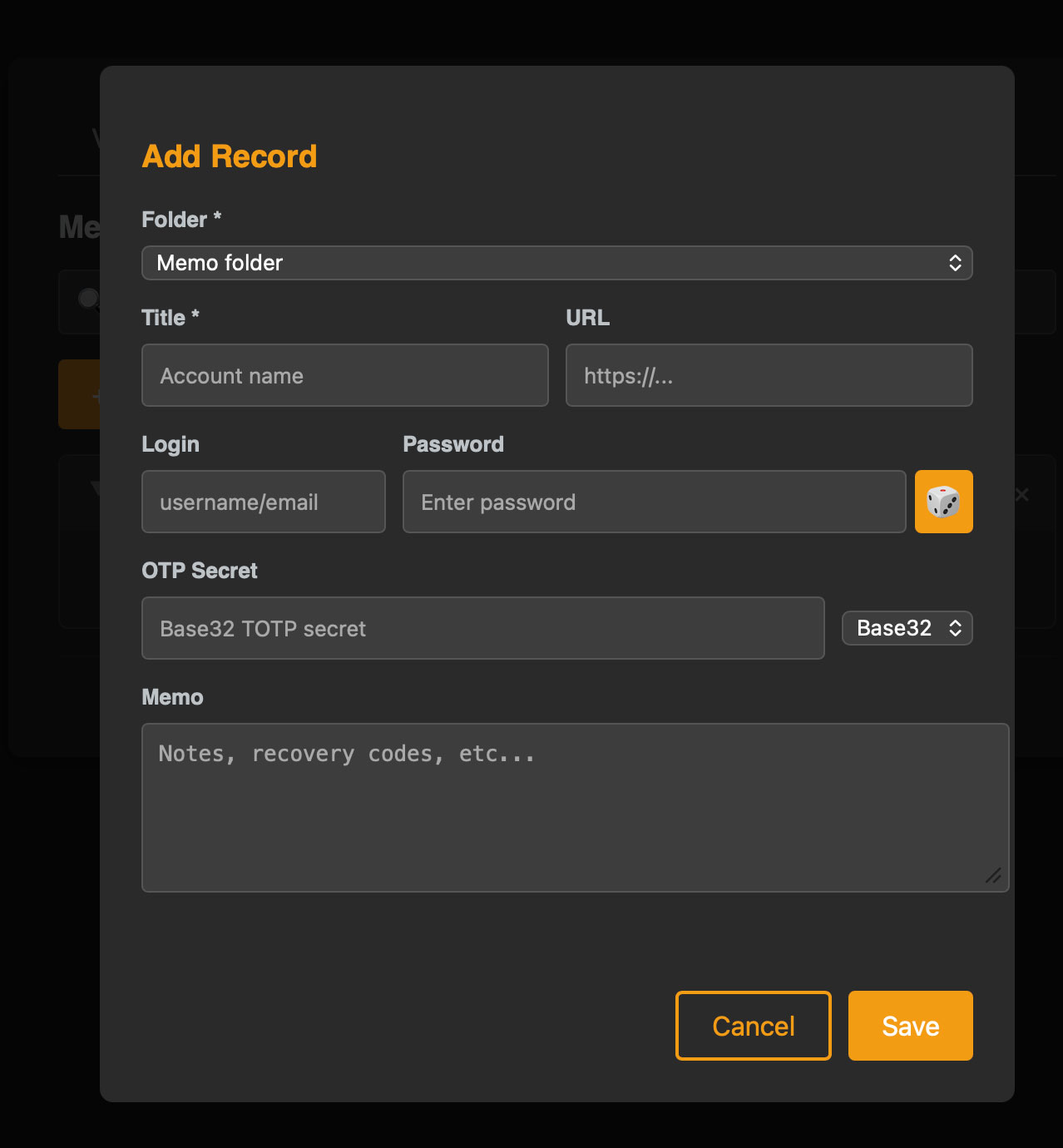
Because the password/notes manager and 2FA vault are available right after Unlock (no mount required), Sundy doubles as a fast offline password manager even when you don't need the disk.
Virtual Disk
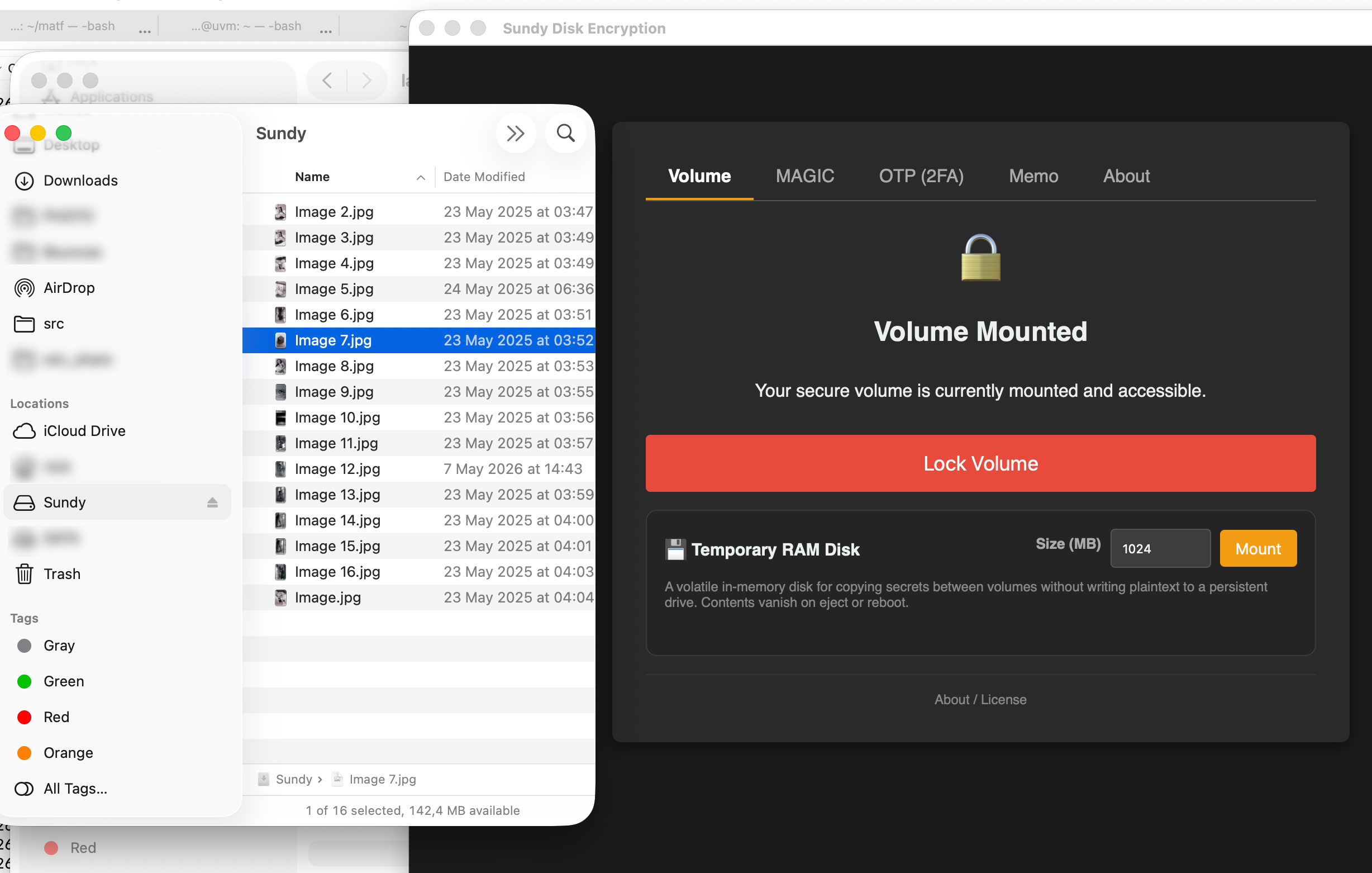
When you unlock a vault and choose Mount drive, Sundy exposes a virtual block device through Apple's FSKit framework (macOS 26+ on Apple Silicon) and attaches it with the system disk tools — the same real-disk experience as before, without macFUSE or other add-ons.
Supported Filesystems
- APFS: Recommended for macOS (supports snapshots, encryption)
- ExFAT: Cross-platform compatible
- HFS+: Legacy macOS support
Working with Files
The mounted disk works exactly like any other disk. Use Finder, drag & drop files, open documents in any application. All reads and writes are encrypted/decrypted transparently.
Sundy vs. VeraCrypt, Cryptomator, and FileVault
Sundy is built for a different threat model than traditional encrypted containers, cloud folder encryption, or full-disk encryption. VeraCrypt, Cryptomator, and FileVault are useful tools, but Sundy focuses on hidden multi-password vaults, decoy access, offline OTP/Memo storage, and carriers that avoid obvious encryption signatures.
| Capability | Sundy | VeraCrypt | Cryptomator | macOS FileVault |
|---|---|---|---|---|
| Main purpose | Hidden vaults, decoy passwords, OTP/Memo, and optional mountable disks | Encrypted containers and disks | Encrypting cloud-synced folders | Protecting the whole Mac when powered off |
| Plausible deniability | Unlimited passwords can open separate believable vaults with no master view | Supports hidden volumes, usually as a two-layer container model | Not designed for deniability; encrypted vault structure remains visible | Not designed for deniability; it protects the device, not hidden datasets |
| Storage appearance | Block files look random, directory blocks are hashed, and WAV/AIFF carriers look and sound like ordinary audio noise | Containers generally look like encrypted random data | Encrypted files and folders are visible in the cloud directory | The Mac's internal disk is visibly FileVault-protected |
| Multiple independent passwords | Yes — each password opens its own vault region | Limited to normal and hidden volume workflows | No — one vault password unlocks one cloud vault | No — account or recovery credentials unlock the same Mac volume |
| Built-in secret tools | Offline OTP vault, passwords, and secure Memo records work immediately after unlock | No built-in OTP or password manager | No built-in OTP or password manager | No built-in OTP or password manager |
| macOS integration | Uses Apple FSKit on macOS 26+ Apple Silicon; no macFUSE, third-party kernel extension, or reduced security mode | May require additional filesystem support depending on setup | Runs as an app for encrypted cloud folders | Built into macOS |
💡 How to think about it
FileVault protects your Mac if it is lost or stolen. Cryptomator protects files you sync to cloud storage. VeraCrypt protects traditional encrypted containers. Sundy is for private vaults where the existence, number, and content of your real secrets should not be provable.
Threat Model
Sundy is designed for users who need encrypted storage that remains private even when the storage carrier is copied, inspected, synced, backed up, or handed over under pressure. Its core goal is not only to protect plaintext data, but also to make unopened vaults difficult or impossible to prove from the carrier alone.
What Sundy Protects Against
- Offline inspection of the carrier: A block file is randomized, directory storage uses hashed encrypted blocks, and WAV/AIFF carriers hide encrypted data in low-bit audio noise. There are no Sundy headers, magic bytes, visible allocation tables, or plaintext filenames that identify hidden vaults.
- Forced disclosure of one password: Every password opens its own vault. Revealing one password does not reveal a master index, a list of other vaults, or proof that other passwords exist.
- Brute-force password guessing: Passwords are stretched with PBKDF2-HMAC-SHA256 using 5,000,000 iterations, making each guess deliberately expensive. MAGIC Unlock can turn a remembered folder/file tree into a high-entropy key that is impractical to brute force without the exact files and structure.
- Silent corruption and bit rot: Authenticated clusters use keyed HMAC-SHA256. When redundant copies exist, bad or tampered copies are detected and a good copy can be used instead.
- Casual cloud, backup, or border inspection: A backed-up carrier reveals only random-looking data or normal-looking audio noise. Different passwords can present believable decoy contents while real vaults remain undisclosed.
What Sundy Does Not Protect Against
- A compromised Mac: Malware, screen recorders, keyloggers, memory capture tools, or a hostile administrator running while the vault is unlocked can observe secrets like any other local app.
- Weak or reused passwords: If a password is guessable, leaked elsewhere, or typed into an untrusted machine, Sundy cannot make it strong after the fact. Use strong unique passwords or MAGIC Unlock inputs you can reproduce safely.
- Operational mistakes: Re-encoding a WAV/AIFF carrier, normalizing audio, saving it through an editor, deleting carrier files, forgetting the noise depth K, or losing MAGIC key files can permanently destroy access.
- Live observation: If someone watches you unlock, sees your open vault, photographs your screen, or captures Finder while a disk is mounted, they can learn what is visible in that session.
- Legal or physical coercion: Sundy can provide decoy vaults and deniable carriers, but it cannot guarantee safety against every real-world demand, policy, or physical threat.
Security Assumptions
| Assumption | Why it matters |
|---|---|
| Your Mac is trusted when unlocking | Sundy protects data at rest. It cannot hide secrets from malware or monitoring tools already running on the machine. |
| Passwords or MAGIC inputs stay secret | The full password or exact MAGIC tree determines the vault key. Anyone who can reproduce it can open that vault. |
| Audio carriers remain lossless | WAV/AIFF steganography depends on exact PCM sample bits. Lossy conversion or audio processing can erase the hidden storage. |
| Backups preserve the whole carrier | The carrier is the vault. Back up the block file, storage directory, or audio carrier exactly as-is. |
Recommended Practice
- Keep separate passwords in separate Gen3 buckets when you want maximum isolation between vaults.
- Use believable decoy vaults only with contents you are comfortable revealing.
- Unmount the disk when you only need OTP or Memo, and lock the vault when finished.
- Store backup copies of critical carriers and MAGIC key files offline, but protect those backups like the originals.
- For audio carriers, record the exact noise depth K and never re-encode, normalize, trim, or edit the carrier after creation.
Moving Data Safely
Sundy gives you two ways to move secrets without ever exposing plaintext to persistent storage.
Copy to a New Password
Each 2FA account and each notes folder has a Copy to new password action. It re-writes that item into a different password's hidden vault inside the same storage file. The dialog asks for the target password twice (there is no "wrong password" feedback in the multi-password model, so the confirmation guards against typos). Nothing is ever overwritten — a name clash is renamed Finder-style ("Name copy", "Name copy 2", …). Works on all three backends.
Temporary RAM Disk
From the Volume tab you can mount a volatile, RAM-backed scratch disk. While it's mounted you can export your entire 2FA or notes dataset to it from one vault and import it into another. The hand-off lives only in memory and vanishes when the RAM disk is ejected or the machine reboots — it never lands on persistent storage. Imports merge rather than overwrite, renaming any clashes Finder-style.
Backup & Recovery
Backing Up Your Storage
Simply copy your storage file (or directory, or audio carrier) to a backup location. The entire vault is self-contained.
⚠️ Password Recovery
There is no password recovery. Sundy cannot help you recover forgotten passwords. We recommend keeping a secure, offline record of your passwords.
MAGIC Unlock Backup
If you unlock with MAGIC, keep safe copies of every file you use as a key and remember the exact folder structure. Without the same files and layout, the key cannot be reproduced and the vault cannot be opened.
Command Line
Sundy includes a command-line interface for advanced users and headless automation. (The CLI mounts the disk immediately after unlocking, then holds it until you press Ctrl+C.)
# Create a new volume (always fully randomized)
sundy --create --file /path/to/volume.dat --size 1024 --randomize

# Unlock and mount a volume (Gen3 layout by default)
sundy --unlock --file /path/to/volume.dat --mount /Volumes/Sundy

# Unlock using the Flat-32 compatibility layout (32 copies)
sundy --unlock --gen2 --file /path/to/volume.dat --mount /Volumes/Sundy

# Open an older 1 KiB-cluster volume
sundy --unlock --legacy --file /path/to/old-volume.dat --mount /Volumes/Sundy

# Password is prompted interactively (hidden input; not accepted on the command line)
sundy --cli --unlock --file volume.dat --mount /Volumes/Sundy
Troubleshooting
Disk Won't Mount
- Confirm you are on macOS 26+ (Apple Silicon)
- Ensure Sundy Extension is enabled under System Settings → General → Login Items & Extensions → File System Extensions
- Install Sundy to
/Applications(not a build folder or external drive) - Launch Sundy as your normal user — do not run mount operations with
sudo - Try restarting your Mac if the extension was just installed or updated
Slow Performance
- Ensure you have an active license (unlicensed mode is intentionally slow)
- Use SSD storage for your encrypted files
- Increase cache size in settings for better performance
MAGIC Unlock Not Opening the Vault
- Rebuild the tree exactly: the same folder names, nesting, file names, and file contents
- Drag in real files (not aliases or shortcuts) so their contents are read
- Remember that even a one-byte change to any file produces a different key
- Hidden entries (names starting with
.) are ignored — don't rely on them
Need more help? Contact us at support@sundy.io